Advanced Excel Course Training in Gurgaon
Master Data Analysis and get prepared for Microsoft certified Excel certification with our role based courses tailored to your specific needs. Excel is used for Data Analysis to get the trends & patterns used for visualization purpose within the enterprises to drive key business decisions by using visual elements bar charts, graphs, area charts, maps & other forms of viz patterns available. With the help of Excel tool, Data Analysts turns the key insights/numbers into a graphical view allowing business users to discover patterns, trends & insights quickly to make any business decision.
- Enroll for Data Analyst, Developer, Operations, MLOps, AI / ML, Data Viz and Analyst Certifications
- Experience blended learning through interactive offline and online sessions.
- Job Assured Course

- Course Duration - 2 months
- Get Trained from Industry Experts
Train using realtime course materials using online portals & trainer experience to get a personalized teaching experience.
Active interaction in sessions guided by leading professionals from the industry
Gain professionals insights through leading industry experts across domains
Enhance your career with 42+ in-demand skills and 20+ services
Advanced Excel Course Overview
This Microsoft Excel live-learning courses cover deep into designing, developing, deploying, and managing scalable solutions across Microsoft platform, equipping you for success in today’s fast-evolving technology landscape. Master Data Visualization (Data Analysis) and get prepared for Microsoft Excel official certifications with our role based courses tailored to your specific needs. Microsoft Excel is the Data Analysis Tool used for analysis purpose within the enterprises to drive key business decisions by using visual elements bar charts, graphs, area charts, maps & other forms of viz patterns available. With the help of Excel tool, Data Analysts turns the key insights/numbers into a graphical view allowing business users to discover patterns, trends & insights quickly to make any business decision
- Benefit from ongoing access to all self-paced videos and archived session recordings
- Success Aimers supports you in gaining visibility among leading employers
- Get prepared for Microsoft Excel official certifications with our role based courses tailored to your specific needs
- Engage with real-world capstone projects
- Engage in live virtual classes led by industry experts, complemented by hands-on projects
- Job interview rehearsal sessions
Basic, high-level knowledge of Data warehousing & Data Modelling Concepts and terminology. Ideal starting point for Microsoft Excel Certification for those with no prior IT/cloud experience transitioning to cloud careers, or business professionals seeking foundational cloud literacy.

Familiarity with Data Warehouse, Data Pipelines (DL), and Data Modelling fundamentals and real-world applications

What is Microsoft Excel Certified Developer?
Microsoft Excel Certified Data Analyst are essential for driving Data innovation in Data driven Pipeline development and testing. They manage the full Data lifecycle—Visualize Data apps, building and maintaining Data pipelines for key business decisions & automating BI development and testing processes. By streamlining Data workflows and resolving challenges in Data Apps on cloud, and maintenance, they help organizations deliver reliable, high-performance applications faster and more efficiently.
The role of Microsoft Excel Certified Developer ?
Microsoft Excel Certified Developer in Data development and testing oversees the end-to-end lifecycle of Data applications, from development to deployment and system performance optimization. Key responsibilities include:
Exploring Emerging Technologies: Leveraging Data technologies and Data Visualization techniques to enhance efficiency and streamline Data Analyst workflows.
Scalable Data, AI & Data Driven Apps Development: Designing and implementing Data driven applications that address critical business needs.
Seamless Deployment: Coordinating Data Driven deployment of pipelines with infrastructure management for smooth delivery.
Data Workflow Optimization: Creating, analyzing, and refining automation scripts and deployment of Data Analyst workflows to maximize productivity.
For professionals aspiring to excel in this field, the Success Aimers Microsoft Excel Developer Course provides hands-on training to master these skills. The program equips you to confidently manage Data deployment lifecycles, Data pipelines automation, and Data Analysis processes, positioning you as a high-impact Microsoft Excel Certified Developer in Data development and testing.”**
Who should take this Microsoft Excel Certified Developer course?
The Microsoft Excel Certified Developer Course is tailored for Data Analyst professionals aiming to accelerate their careers in Cloud, data, and technology-driven sectors. It is particularly valuable for roles including:
Data Team Leaders
Data and Tableau Developers
Data Cloud Engineers and IT Managers
Data Cloud & Tableau Engineers
Data Cloud Researchers and ETL Engineers
This program equips participants with the skills to lead Data & Reporting initiatives, implement advanced Microsoft Excel workflows, and drive innovation in ETL development and testing.
What are the prerequisites of Microsoft Excel Certified Developer Course?
Prerequisites for the Microsoft Excel Certified Cloud Engineer Certification Course”
To ensure a seamless learning experience, candidates are expected to have:
Educational Background: An undergraduate degree or high school diploma in a relevant field.
Technical Foundation: Knowledge of IT, Data development, or data science fundamentals.
Programming Skills: Basic proficiency in languages such as Python or JavaScript.
Cloud Familiarity: Experience with cloud platforms like AWS or Microsoft Azure.
Meeting these prerequisites enables learners to effectively grasp advanced Cloud concepts, including Data Viz tool, Data pipeline workflows, Data App deployment, and automation throughout the course.
Kind of Job Placement/Offers after Microsoft Excel Certified Developer Course?
- Microsoft Excel Certified Cloud Engineer
- Data Analysts Engineer
- Data Cloud Manager
- Data Automation Engineer
- Data Cloud Engineer /Data Cloud Architect
- Data Analyst Engineer
- Data Cloud Engineer
| Training Options | Weekdays (Mon-Fri) | Weekends (Sat-Sun) | Fast Track |
|---|---|---|---|
| Duration of Course | 2 months | 3 months | 15 days |
| Hours / day | 1-2 hours | 2-3 hours | 5 hours |
| Mode of Training | Offline / Online | Offline / Online | Offline / Online |
Advanced Excel Course Curriculum
This Advanced Excel Certification training enhances your career after choosing the relevant certification path based on the roles. You can practice with hands-on labs and capstone projects and gain proficiency with Data Viz tools. After completion of the course, you can leverage Job assistance services and enhance career prospects.
Below are the leading cloud career roles and the corresponding Advanced Excel certification path. You can choose the role(s) that progress your Advanced Excel certification journey toward your goals. These learning paths are recommendations, not requirements.
Advanced Excel
Microsoft Excel Fundamentals
- Launching Excel
- Microsoft Excel Startup Screen
- Introduction to the Excel Interface
- Customizing the Excel Quick Access Toolbar
- More on the Excel Interface (Workbook and Status Bar)
- Understanding the Structure of an Excel Workbook
- Saving an Excel Document
- Opening an Existing Excel Document
- Common Excel Shortcut Keys
Entering and Editing Text and Formulas
- Entering Text to Create Excel Spreadsheet Titles
- Working with Numeric Data in Excel
- Entering Date Values in Excel
- Working with Cell References
- Creating Basic Formulas in Excel
- Relative Versus Absolute Cell References in Formulas
- Understanding the Order of Operation
Working with Basic Excel Functions
- The structure of an Excel Function
- Working with the SUM() Function
- Working with the MIN () and MAX () Functions
- Working with the AVERAGE() Function
- Working with the COUNT() Function
- Adjacent Cells Error in Excel Calculations
- Using the AutoSum Command
- Excel's AutoSum Shortcut Key
- Using the AutoFill Command to Copy Formulas
Modify an Excel Worksheet
- Working with Font Formatting Commands
- Changing the Background Color of a Cell
- Adding Borders to Cells
- Excel Cell Borders Continued
- Formatting Data as Currency Values
- Formatting Percentages
- Using Excel's Format Painter
- Creating Styles to Format Data
- Merging and Centering Cells
- Using Conditional Formatting
- Editing Excel Conditional Formatting
Inserting Images and Shapes into an Excel Worksheet
- Inserting Images
- Inserting Excel Shapes
- Formatting Excel Shapes
- Working with Excel SmartArt
Create Basic Charts in Excel
- Creating an Excel Column Chart
- Working with the Excel Chart Ribbon
- Adding and Modifying Data on an Excel Chart
- Formatting an Excel Chart
- Moving a Chart to another Worksheet
- Working with Excel Pie Charts
- Microsoft Excel Charts Quick Guide
Printing an Excel Worksheet
- Viewing your Document in Print Preview
- Changing the Margins, Scaling and Orientation
- Excel Worksheet Margins
- Working with Page Layout View
- Adding Header and Footer Content
- Printing a Specific Range of Cells
Working with Excel Templates
- Intro to Excel Templates
- Opening an Existing Template
- Creating a Custom Template
Working with an Excel List
- Understanding Excel List Structure
- Sorting a List Using Single Level Sort
- Sorting a List Using Multi-Level Sorts
- Using Custom Sorts in an Excel List
- Filter an Excel List Using the AutoFilter Tool
- Creating Subtotals in a List
- Format a List as a Table
- Using Conditional Formatting to Find Duplicates
- Removing Duplicates
Excel List Functions
- Understanding the Need for Excel Data Validation
- Creating an Excel Data Validation List
- Excel Decimal Data Validation
- Adding a Custom Excel Data Validation Error
- Dynamic Formulas by Using Excel Data Validation Techniques
Excel Data Validation
- Context Switch
- Bulk Processing Introduction
- Bulk Processing Example
- Bulk Processing with LIMIT option
- Bulk Processing with ROWTYPE
- Handling Bulk Processing Exceptions
Importing and Exporting Data
- Importing Data into Microsoft Excel
- Importing Data from Text Files
- Importing Data from Microsoft Access
- NEW VERSION -- Import Data from Text Files into Excel
- NEW VERSION -- Import Data from a Database into Excel
- Microsoft Excel Legacy Import Options for New Excel Versions
- Exporting Data to a Text File
Excel PivotTables
- Understanding Excel PivotTables
- Creating an Excel PivotTable
- Modifying Excel PivotTable Calculations
- Grouping PivotTable Data
- Formatting PivotTable Data
- Modifying PivotTable Calculations
- Drilling Down into PivotTable Data
- Creating Pivot Charts
- Filtering PivotTable Data
- Filtering with the Slicer Tool
Working with Excel’s PowerPivot Tools
- Introduction to Excel Power Pivot
- Why PowerPivot?
- Activating the Excel PowerPivot AddIn
- Creating Data Models with PowerPivot
- Excel Power Pivot Data Model Relationships
- Creating PivotTables based on Data Models
- Excel Power Pivot KPIs
Working with Large Sets of Excel Data
- Using the Freeze Panes Tool
- Grouping Data (Columns and/or Rows)
- Print Options for Large Sets of Data
- Linking Worksheets (3D Formulas)
- Consolidating Data from Multiple Worksheets
- Microsoft Excel Managing Large Excel Datasets Quick Guide
Working with Excel’s Conditional Functions
- Working with Excel Name Ranges
- Advantages and Disadvantages of Excel Name Ranges
- Editing an Excel Name Range
- Using Excel's IF() Function
- Excel's IF() Function with a Name Range
- Nesting Functions with Excel
- Nesting Excels AND() Function within the IF() Function
- Using Excel's COUNTIF() Function
- Using Excel's SUMIF() Function
- Using Excel's IFERROR() Function
Working with Excel’s LookUp Functions
- Microsoft Excel VLOOKUP() Function
- Microsoft Excel HLOOKUP() Function
- Microsoft Excel INDEX() Function
- Microsoft Excel MATCH() Function
- Microsoft Excel INDEX() and MATCH() Function Combined
- Microsoft Excel INDEX() and MATCH() Function Combined Continued
- Creating a Dynamic HLOOKUP() with the MATCH() Function
Working with Excel’s Text Based Functions
- Using Excel's LEFT(), RIGHT() and MID() Functions
- Using Excel's LEN() Function
- Using Excel's SEARCH() Function
- Using Excel's CONCATENATE() Function
- Microsoft Excel Adv. Functions and Formulas Quick Guide
New Excel Functions for Excel 2019 and Microsoft 365 Excel Editions
- Introduction to New Excel Functions
- Microsoft Excel 365 FILTER() Function
- Microsoft Excel 365 SORT() Function
- Microsoft Excel 365 UNIQUE() Function
- Microsoft Excel Dynamic FILTER() Function with Data Validation
- Microsoft Excel 365 XLOOKUP() Function
- EXERCISE: Dynamic Employee Order List
- Microsoft Excel 365 SWITCH() Function
- TRUE Expressions with Microsoft Excel 365 SWITCH() Function
- Microsoft Excel 365 TEXTJOIN() Function
- TEXTJOIN() Function with Criteria
- Microsoft Excel 365 TEXTSPLIT() Function
Auditing an Excel Worksheet
- Tracing Precedents in Excel Formulas
- Tracing Dependents in Excel Formulas
- Working with the Watch Window
- Showing Formulas
Protecting Excel Worksheets and Workbooks
- Protecting Specific Cells in a Worksheet
- Protecting the Structure of a Workbook
- Adding a Workbook Password
Mastering Excel’s “What If?” Tools
- Working with Excel's Goal Seek Tool
- Working with Excel's Solver Tool
- Building Effective Data Tables in Excel
- Creating Scenarios in Excel
Automating Repetitive Tasks in Excel with Macros
- Understanding Excel Macros
- Activating the Developer Tab in Excel
- Creating a Macro with the Macro Recorder
- Editing a Macro with VBA
- Creating Buttons to Run Macros
Microsoft Excel Macros and VBA
- Understanding the why and how Excel Macros
Project#1: Using Excel’s Macro Recorder Tool
- Introduction to Project #1: Inserting and Formatting Text
- Activating the Excel Developer Tab
- Running a Microsoft Excel Macro
- Project #1: Running an Excel Macro with a Button
- Create a Custom Button Using Excel Shapes
- Adding the Excel Macro to the Quick Access Toolbar
- Project #1: Editing the VBA Recorded by the Macro Recorder
- Save a Workbook with a Macro/VBA Code
- Practical Uses of Excel Macros
Excel VBA Concepts
- Intro to Excel VBA Concepts
- Intro to Excel VBA Object Oriented Programming Concepts
- The Visual Basic Editor (VBE)
- Introduction to the Excel VBA Immediate Window
- Excel VBA Modules
- Creating an Excel VBA Procedure
- Adding Code to a VBA Procedure
- Including Excel VBA Comments
- Excel VBA MSGBOX Function
- Excel VBA MsgBox Microsoft Help Information
- Understanding and working with Excel VBA Variables
Working with Excel VBA Logic Statements
- Building Logic with an Excel VBA IF Statement
- Including an Else Statement in the VBA IF Statement
- Expanding the IF Logic with Multiple ElseIf Statements
- Working with Excel VBA Select Case Statements
- Working with an Excel VBA Do While Loop
- Excel VBA Do While Loop Dynamic Condition
- Working with an Excel VBA for Each Loop
- Working with an Excel VBA for Next Loop
Project#2: Moving Beyond the Basics and into VBA
- Introduction to Project #2: Interacting with the User
- Project #2: Introduction to the Excel VBA Range.Sort Method
- Creating the Excel VBA Sort Procedures for this Project
- Project #2: Prompting the User for Information
- Continue Excel VBA InputBox
- Project #2: Building Logic into Your Macros
- Project #2: Alerting the User of Errors
- Using Excel VBA Error Control Statements
- Create a Button to Run the Sort Procedure and Save
Project#3: Preparing and Cleaning Up Data with Excel VBA
- Introduction to Project #3: Cleaning Up and Formatting Data
- Project #3: Preparing to the Use the Macro Recorder
- Project #3: Inserting the Headers
- Project #3: Formatting the Headers
- Project #3: Testing the Macros
- Project #3: Using an Excel VBA Loop to Loop through all Worksheets
- Project #3: Testing the Excel VBA Loop
- Project #3: Adding Logic to an Excel VBA Loop
Project#4: Using VBA to Automate Excel Formulas
- Introduction to Project #4: Automate Excel Formulas
- Project #4: Start the Procedure to Automate the SUM Function
- Working with the Range Address Property
- Creating the SUM Function in VBA
- Run the Excel VBA Procedure to SUM Records
- Project #4: Loop the SUM() Function Over Multiple Worksheets
Project#5: Bringing it All Together and a Weekly Report
- Introduction to Project #5: Creating the Final Report
- Project #5: Creating the Final Report Excel VBA Loop
- Project #5 - Copying Content with Excel VBA
- Project #5 - Pasting Content with Excel VBA
- Cleaning Up the Final Report VBA Loop Code
- Adding Logic to Stop the Loop from Running Multiple Times on a Worksheet
- Project #5 - Running the Final Report Procedure
Project#6: Working with Excel VBA User Forms
- Introduction to Project #6: Working with Excel VBA User Forms
- Project #6: Creating an Excel User Form
- Project #6: Working with Form and Control Properties
- Project #6: Formatting Excel VBA User Form Controls
- Project #6: Adding VBA Code to the Initialize Event
- Project #6: Using the AddItem Method within a Loop
- Project #6: Adding VBA Code to the ComboBox Change Event
- Project #6: Adding VBA Code to the Add Worksheet Button
- Project #6: Change Worksheet Name
- Project #6: Catch Errors When Adding a Worksheet
- Add Sheet Procedure Catch Errors
- Project #6: Additional Conditions on the Loop
- Project #6: Running the Final Report Procedure
- Project #6: Showing the VBA User Form on Workbook Open
Project#7: Importing Data from Text Files
- Project #7: Opening a Text File for Import
- Project #7: Get Data from Text File
- Project #7: Importing Multiple Text Files with the GetOpenFilename Method
- Project #7: Creating a Loop to Read Each File
- Project #7: Adding a New Sheet for Imported Data
- Project #7: Clear the Clipboard
- Project #7: Working with the ScreenUpdating Property
- Project #7: Creating Reusable Code with a VBA Function
Develop a Data Visualization using Microsoft Excel platform with Medallion architecture & ingestion tools.
Project Description : Ingest data from multiple data source into Data pipeline through ADF connectors to a raw layer automatically through the CI/CD pipeline integrates with Terraform scripts that will snip the infrastructure at runtime & also helped the apps to be deployed into higher environments (UAT, Stage & above). Data will be stored in the Datawarehouse after apply the business rules and transformations using the ETL tools like PySpark, Talend, Informatica IICS & others. After Data Modeling, Data Marts will be prepared to bring in the reporting layer to integrate it with BI tools.
Automated Ingestion Framework Pipeline (Data MESH on Azure & reported to Excel Dashboard)
The whole Data MESH pipeline will be automated through Jenkins & Terraform where in it deploys the Azure components like Azure BLOB Storage, Functions, Logic Apps into Azure before triggering the data flow through the pipeline. Data will be extracted from the source like contact centers & others & this whole pipeline is realtime pipeline that triggers whenever data arrives from the source into Kafka using Kafka source and sink connecters that triggers the deployment process. Data will be stored in the Datawarehouse after apply the business rules and transformations using the ETL tools like PySpark, Talend, Informatica IICS & others.
Hours of content
Live Sessions
Software Tools
After completion of this training program you will be able to launch your carrer in the world of AI being certified as Microsoft Excel Certified Developer course.
With the Microsoft Excel Certified Developer course in-hand you can boost your profile on Linked, Meta, Twitter & other platform to boost your visibility
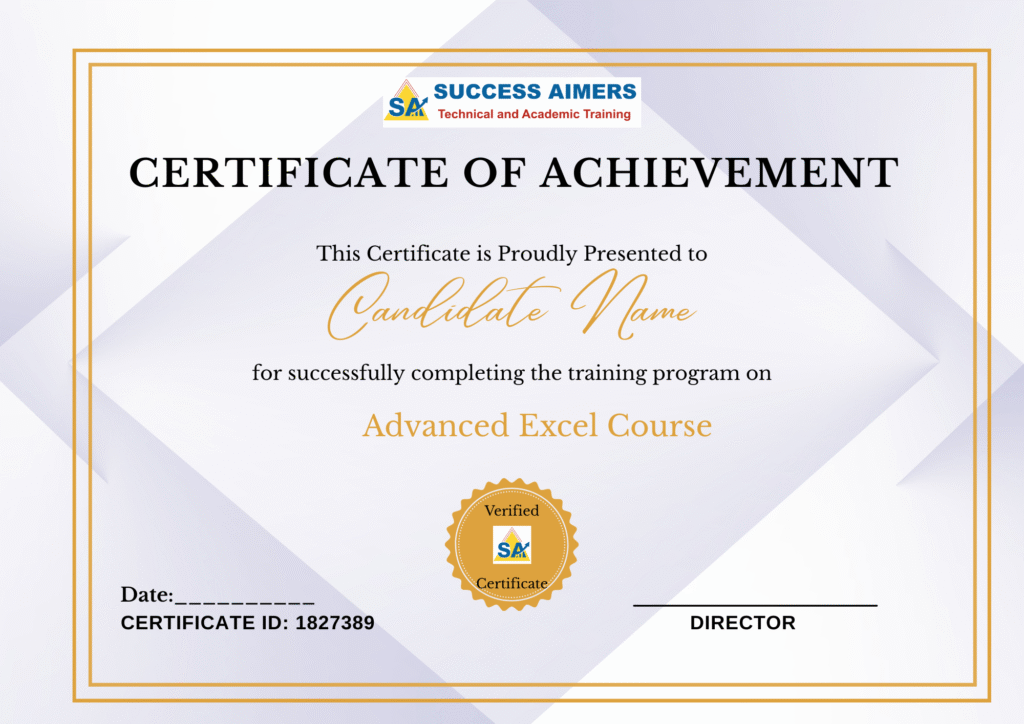
- Get your certificate upon successful completion of the course.
- Certificates for each course
- Azure BLOB Storage
- Microsoft SQL
- SQL
- Azure SQL Server
- Microsoft SQL Server
- ETL Tool
- Data Analysis Tool
- Data Viz
- Datawarehouse
- Data Modelling
- Data Mart
- Data Quality
- Data Quality Check (DQC)
- Azure Moniter

24% - 51%








Designed to provide guidance on current interview practices, personality development, soft skills enhancement, and HR-related questions

Receive expert assistance from our placement team to craft your resume and optimize your Job Profile. Learn effective strategies to capture the attention of HR professionals and maximize your chances of getting shortlisted.

Engage in mock interview sessions led by our industry experts to receive continuous, detailed feedback along with a customized improvement plan. Our dedicated support will help refine your skills until your desired job in the industry.

Join interactive sessions with industry professionals to understand the key skills companies seek. Practice solving interview question worksheets designed to improve your readiness and boost your chances of success in interviews

Build meaningful relationships with key decision-makers and open doors to exciting job prospects in Product and Service based partner

Your path to job placement starts immediately after you finish the course with guaranteed interview calls
Why should you choose to pursue a Microsoft Excel Certified Developer Course with Success Aimers?
Success Aimers teaching strategy follow a methodology where in we believe in realtime job scenarios that covers industry use-cases & this will help in building the carrer in the field of Microsoft Excel & also delivers training with help of leading industry experts that helps students to confidently answers questions confidently & excel projects as well while working in a real-world
What is the time frame to become competent as a Microsoft Excel Certified Developer?
To become a successful Microsoft Excel Certified Developer required 1-2 years of consistent learning with dedicated 3-4 hours on daily basis.
But with Success Aimers with the help of leading industry experts & specialized trainers you able to achieve that degree of mastery in 6 months or one year or so and it’s because our curriculum & labs we had formed with hands-on projects.
Will skipping a session prevent me from completing the course?
Missing a live session doesn’t impact your training because we have the live recorded session that’s students can refer later.
What industries lead in Excel implementation?
- Manufacturing
- Financial Services
- Healthcare
- E-commerce
- Telecommunications
- BFSI (Banking, Finance & Insurance)
- Travel Industry
Does Success Aimers offer corporate training solutions?
At Success Aimers, we have tied up with 500 + Corporate Partners to support their talent development through online training. Our corporate training programme delivers training based on industry use-cases & focused on ever-evolving tech space.
How is the Success Aimers Microsoft Excel Certified Developer Course reviewed by learners?
Our Microsoft Excel Certified Developer Course features a well-designed curriculum frameworks focused on delivering training based on industry needs & aligned on ever-changing evolving needs of today’s workforce due to Data & AI.
Also our training curriculum has been reviewed by alumi & praises the thorough content & real along practical use-cases that we covered during the training. Our program helps working professionals to upgrade their BI skills & help them grow further in their roles…
Can I attend a demo session before I enroll?
Yes, we offer one-to-one discussion before the training and also schedule one demo session to have a gist of trainer teaching style & also the students have questions around training programme placements & job growth after training completion.
What batch size do you consider for the course?
On an average we keep 5-10 students in a batch to have a interactive session & this way trainer can focus on each individual instead of having a large group
Do you offer learning content as part of the program?
Students are provided with training content wherein the trainer share the Code Snippets, PPT Materials along with recordings of all the batches

Data Analytics Certification Course in Gurgaon Master Azure Cloud and get prepared for Azure official...

Power BI Certification Training in Gurgaon Master Data Visualization (Data Analysis) and get prepared for...

Python Course in Gurgaon Master Python and get prepared for Python official certifications with our...

SQL PLSQL Course Training in Gurgaon Master PL SQL and get prepared for PL SQL...

Tableau Certification Training in Gurgaon Master Data Visualization (Data Analysis) and get prepared for Tableau...